Open an image file in Photoshop
To make this easier, you can download the Photoshop file I'll be working with in this tutorial.
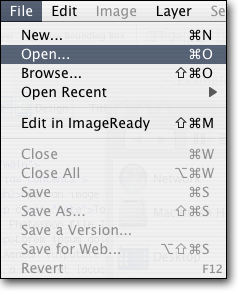
Figure 1.1
To make this tutorial a little easier, I’ve made the Photoshop file I’m using available online. You can download the file, or you can select one of your own files.
To open a file, use the file menu in the upper left-hand corner of Photoshop - press File > Open. Select the file you’d like to edit and then press ‘Open.’See figure 1.1 for an example.
For this tutorial, I’ll open up an image file that contains a photo that needs to be rotated. After we rotate the image we’ll enhance the color, contrast and brightness of the image. We’ll complete all these tasks with a single Action.
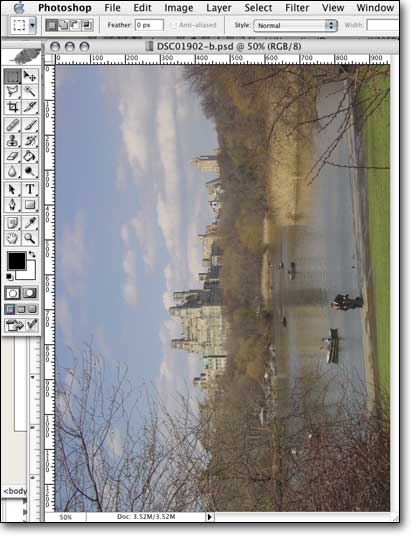
Figure 1.2
The image above (figure 1.2) is a screen grab taken after I opened the file (which you can download here). You'll notice that the image is rotated counterclockwise 90 degrees and is also a little flat. That is, the color could use some adjusting.