Recording the Action
In this section we'll record our Action

Figure 2.2
Now that the Action has been named and started, you’ll notice that the ‘Record’ button is set to ‘On.’ See figure 2.2 for an example.
It’s important to remember that whenever that record button is set to ‘On’ that every instruction you give the program is being recorded.
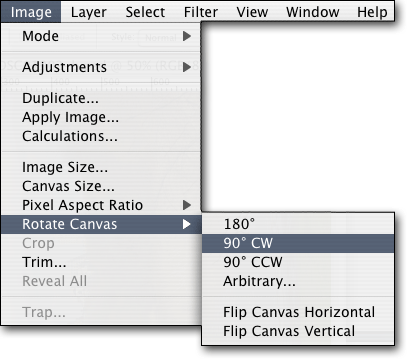
Figure 2.3
Okay, let’s record our Actions:
Step 1: This first thing we’re going to do is rotate the image 90 degrees clockwise. This will bring the image around to the right 90 degrees and level out the photograph. To do this, select ‘Image’ on the program menu bar at the top of the screen, then ‘Rotate Canvas’ and then ‘90 deg. CC.’ See figure 2.3 for an example.
Step 2: Now that the image is properly positioned, we’ll enhance the contrast of the photo. To do this, select ‘Image’ again from the top menu, and then select ‘Adjustments’ and then ‘Auto Contrast.’ You’ll notice that this greatly enhances the color and contrast of the image.
Step 3:This is one of the more important steps. Now that we’re done giving the program instructions we’ll need to stop recording. To do this, simply press the ‘Stop’ button on the Actions panel. See figure 2.4 for an example.
Okay, now you should see the new and improved image. The image should be rotated and properly aligned and the contrast should be greatly improved.

Figure 2.4
In the next section, we’ll get to test this Action.